Capture the commitment.
Put it in your Inbox while it’s on your mind. Clarify what it means when you’re ready, and turn it into an Action you can take.
Capture what’s on your mind, organize your Projects, and find what you can do next. A local-first to-do app for work and life, with your notes close and your data in your own folder.
Metisdo supports workflows inspired by Getting Things Done® (GTD®). Independent app; trademark notices.
Desktop build availability is listed below. The browser preview remains available in desktop Chrome or Edge.
A lifetime licence for personal and internal work use on up to three machines, including every future update and major version. No subscription or renewal fee.
Choose an available build for your platform and architecture. Each published artifact includes a SHA-256 checksum and an exact signing or platform disclosure.
Checking desktop build availability…
Need to start now? Open the browser preview in desktop Chrome or Edge. It requires no app account or payment.
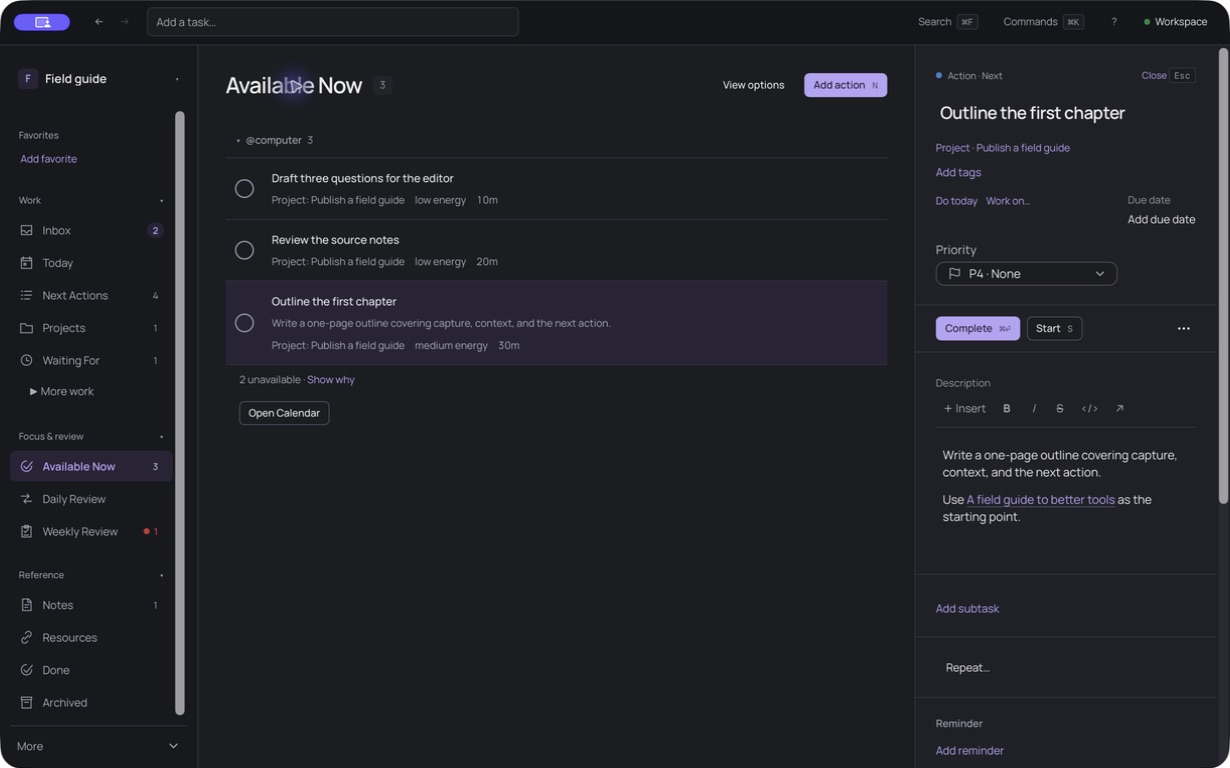
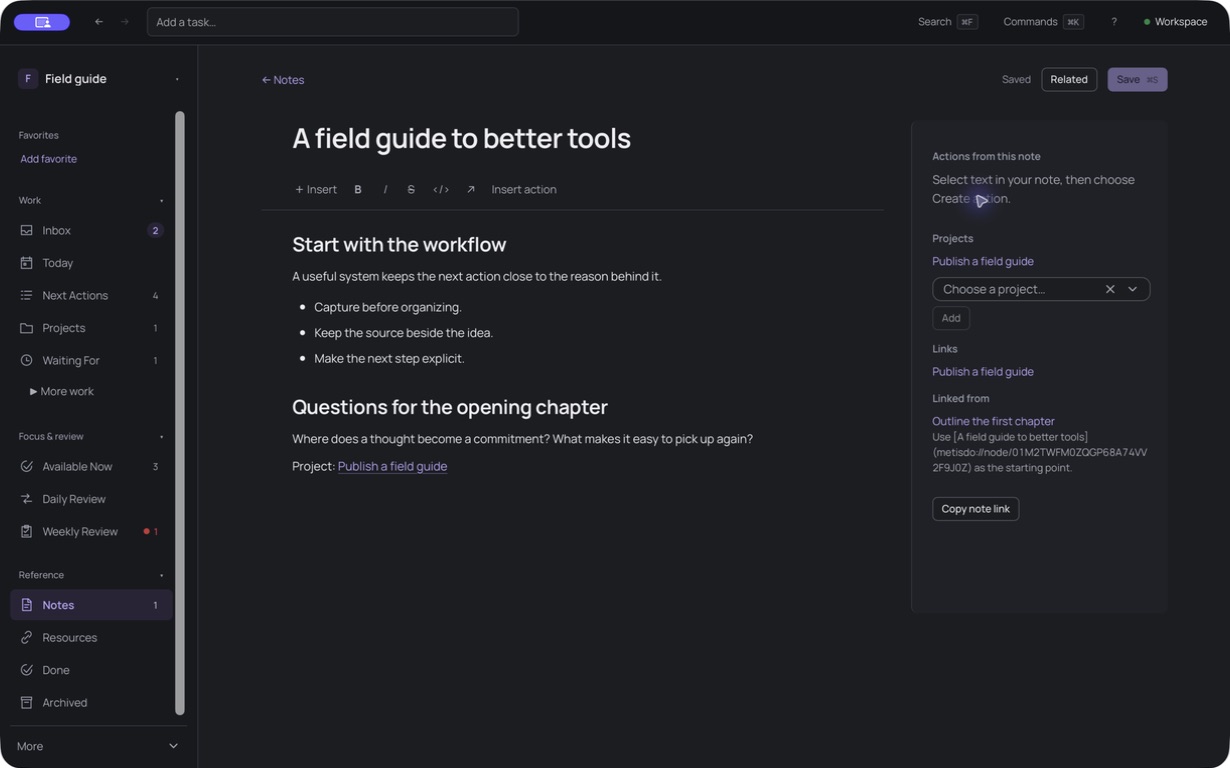
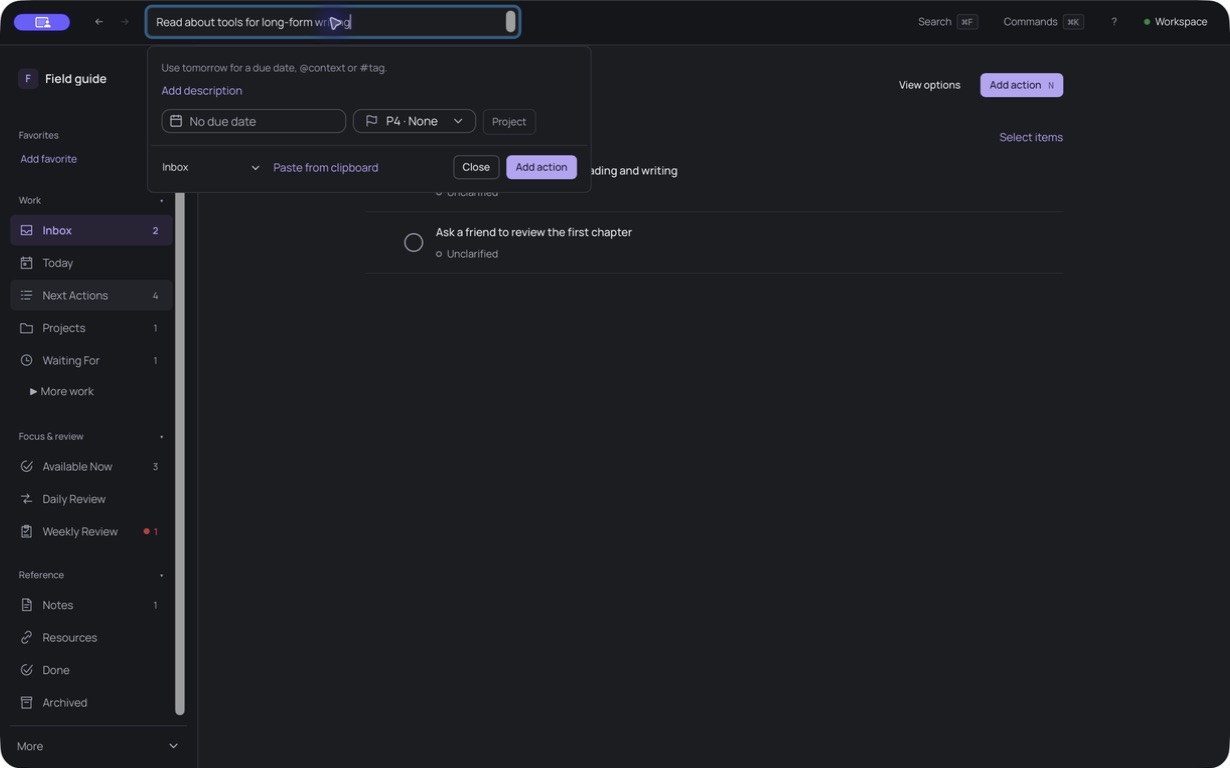
Available Now lists Actions you can start. The Inspector holds the selected Action’s details.
Unretouched screenshots of the current macOS development build, with sample data. Select an image to view it at full size.
Start with one real Project: a work deliverable, a home improvement, or something you’ve been meaning to do. Make the next step clear before moving your whole system.
One outcome. Its next step. The thinking behind it.
Put it in your Inbox while it’s on your mind. Clarify what it means when you’re ready, and turn it into an Action you can take.
Group Actions around a Project’s outcome. Link the Notes that support it, so the details are there when you need them.
Use Available Now to find Actions that fit your context, time, and energy. Keep Waiting For and Someday/Maybe separate, then revisit your commitments in a Weekly Review.
Open the browser preview and choose a local folder. Your Actions, Projects, Notes, and revision history live in that Workspace, without an app account or a cloud copy of your content.
Inspect history, revisit checkpoints, and recover archived work. Create a native snapshot for backup and restoration.
What local-first means hereYour durable content stays in the folder you choose.
Use keyboard shortcuts for everyday work. The desktop app adds Lua plugins and MCP for deeper customization.
Open the Command Palette, capture an Action, or jump straight to Available Now. Navigate lists with j and k, then act on the selection.
Install your own Lua plugins. Work through the same Catalog operations and queries that power the interface.
Give your tools access to the open Workspace. Destructive operations still go through approval in the app.
It’s a to-do app for Actions and Projects, with linked Notes. Actions are the steps you can take, Projects are outcomes that need more than one step, and Notes hold the research and reference material that support them.
No. Notes and Action descriptions use rich editing backed by Markdown, but the Workspace also has structured data and verified revision history. It is not a folder of freely editable Markdown files. Use native snapshots for backup and restoration. The desktop app also offers semantic export for portable content.
You can preview and import Todoist Project CSV exports, Obsidian Tasks, and Obsidian TaskNotes. Start with a small Project and check the preview before importing. This is a one-time import, not ongoing synchronization. See supported formats.
Open the browser preview in desktop Chrome or Edge on macOS, Windows, or Linux. You’ll need permission to read and write a local folder; a managed work computer may restrict that access. Mobile browsers are not supported. The desktop app is in development; Lua plugins, MCP, and global capture are desktop-only.
You can use the current browser preview without payment. The desktop app costs €39 once for a lifetime licence on up to three machines, including all future updates and major versions. Activation and periodic validation need an internet connection; a current authorization supports up to 30 days offline. A 30-day trial starts after email verification and does not require a card. The current browser preview remains available without payment.
Go to desktop downloads to see whether a build is available for your platform. If none is published yet, open the browser preview, choose a folder for your Workspace, and capture a few commitments. Pick one Project and give it a next Action. The getting-started guide walks you through it.
Choose a desktop build when one is published, or use the browser preview today.
See desktop downloads